How to Organize Jobsite Photos (Without Chaos)
Jobsite photos are only useful if you can find them later. This guide gives you a simple, repeatable system to organize photos by date and context—so they support daily logs, pay apps, and dispute conversations.
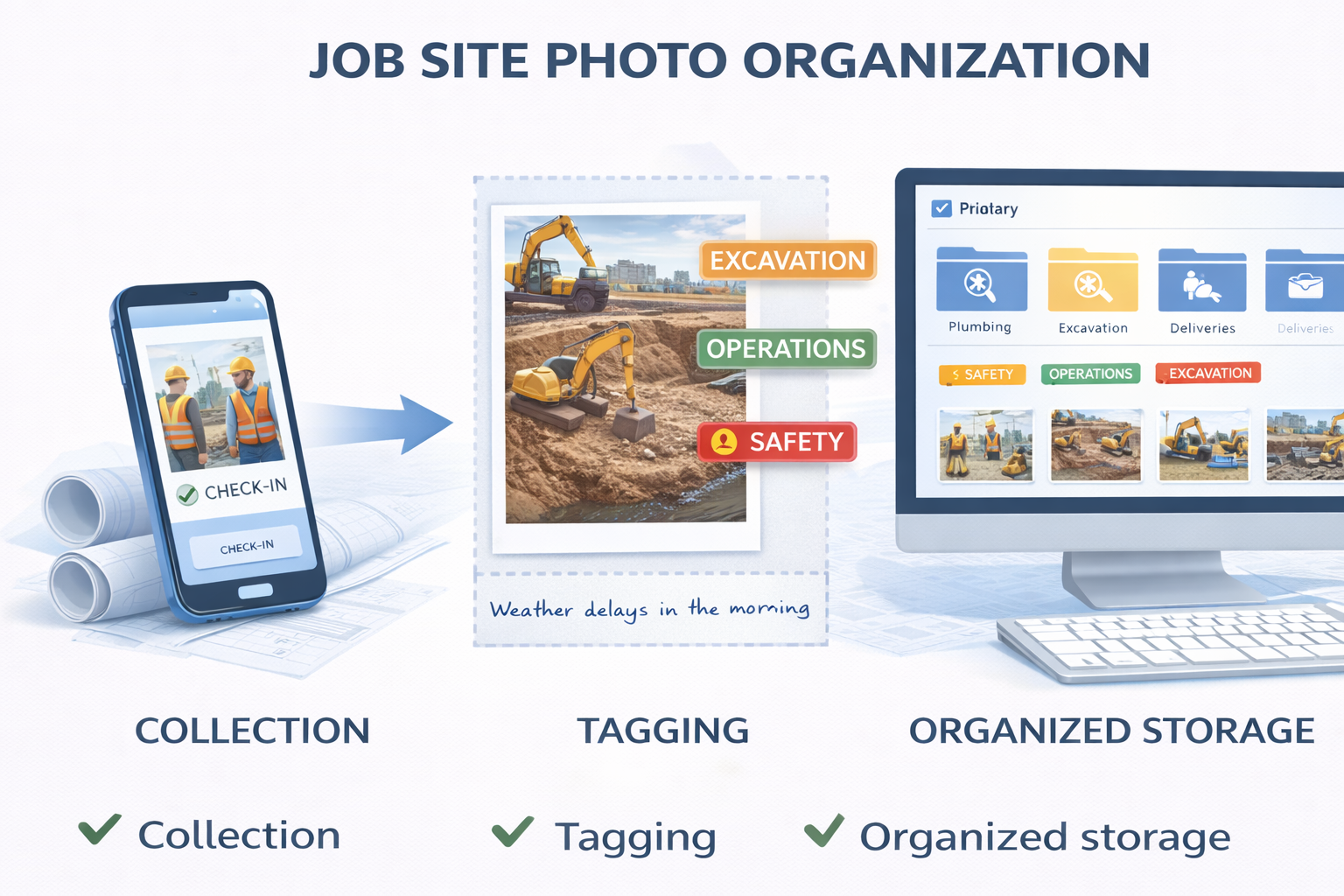
The common failure mode is predictable: photos live in someone’s phone, plus a few in texts, plus a few in email, plus some in a random Dropbox folder named “Job pics.” Then a month later someone asks, “Do you have a photo of that?” and everyone stares into the void.
The goal
Organize photos so you can answer: what, where, when, and why it matters—fast.
Rule #1: Organize by project, then by date
This is the simplest structure that always makes sense later:
Project Name /
  2025-12-26 /
  2025-12-27 /
  2025-12-28 /
If you need more structure, add areas inside the date folder:
Project Name /
  2025-12-26 /
    Level 1 North Corridor /
    Roof /
    Exterior /
Rule #2: Every photo needs a caption (10 seconds)
Captions are the difference between evidence and mystery. A caption doesn’t need to be poetic—just useful.
Use this caption formula:
- Where: location/area
- What: what the photo shows
- Why: progress, issue, delivery, condition, inspection
Example captions:
- “Level 2 east wing – drywall hung in Rooms 210–218 (progress).”
- “South access road – standing water after rain (delay condition).”
- “Material delivery – lighting fixtures received, stored Room 105 (delivery).”
Rule #3: Separate “progress” from “problems”
When you’re hunting for documentation later, you’re usually looking for one of two things: progress proof or issue proof. Keep both, but don’t mix them randomly.
Progress photos
- Installed work
- Milestones
- Before/after
- Hidden work (above ceiling, underground)
Issue photos
- Access problems
- Damage
- Conflicts
- Weather conditions
- Failed inspections / rework
Rule #4: Tie photos to the daily log
Photos become much more powerful when they’re attached to a daily log entry. That connects the image to:
- a date
- a narrative of what happened
- who submitted it
- what work was impacted
This is a core DailyLogsPro goal: keep photos and daily log context together, so you’re not digging through five apps.
How many photos per day is “enough”?
There’s no perfect number. But here’s a practical range:
- Small jobs: 3–8 photos/day
- Active projects: 8–20 photos/day
- Complex scopes / critical milestones: 20+ as needed
The goal isn’t volume—it’s coverage and retrievability.
Why organized photos matter for billing and disputes
Photos with dates and context help with:
- supporting percent complete during pay app review
- documenting delay conditions (weather, access, inspections)
- proving hidden work
- resolving scope disagreements with evidence
If you want the “weather impact” side, see: How to document weather delays.
FAQ
Related guides
- What to include in a daily report
- Common daily log mistakes
- How to document weather delays
- How daily logs support pay apps
DailyLogsPro (Q2 2026)
Verified field reporting: weather, crew counts, photos, notes, and geo/time capture — built to support billing and reduce disputes.
Get Launch AlertsBuilt by Morton Technologies LLC (Metro Detroit).